Itineraries
Plan your daily stops, accommodation, and notes
Itineraries
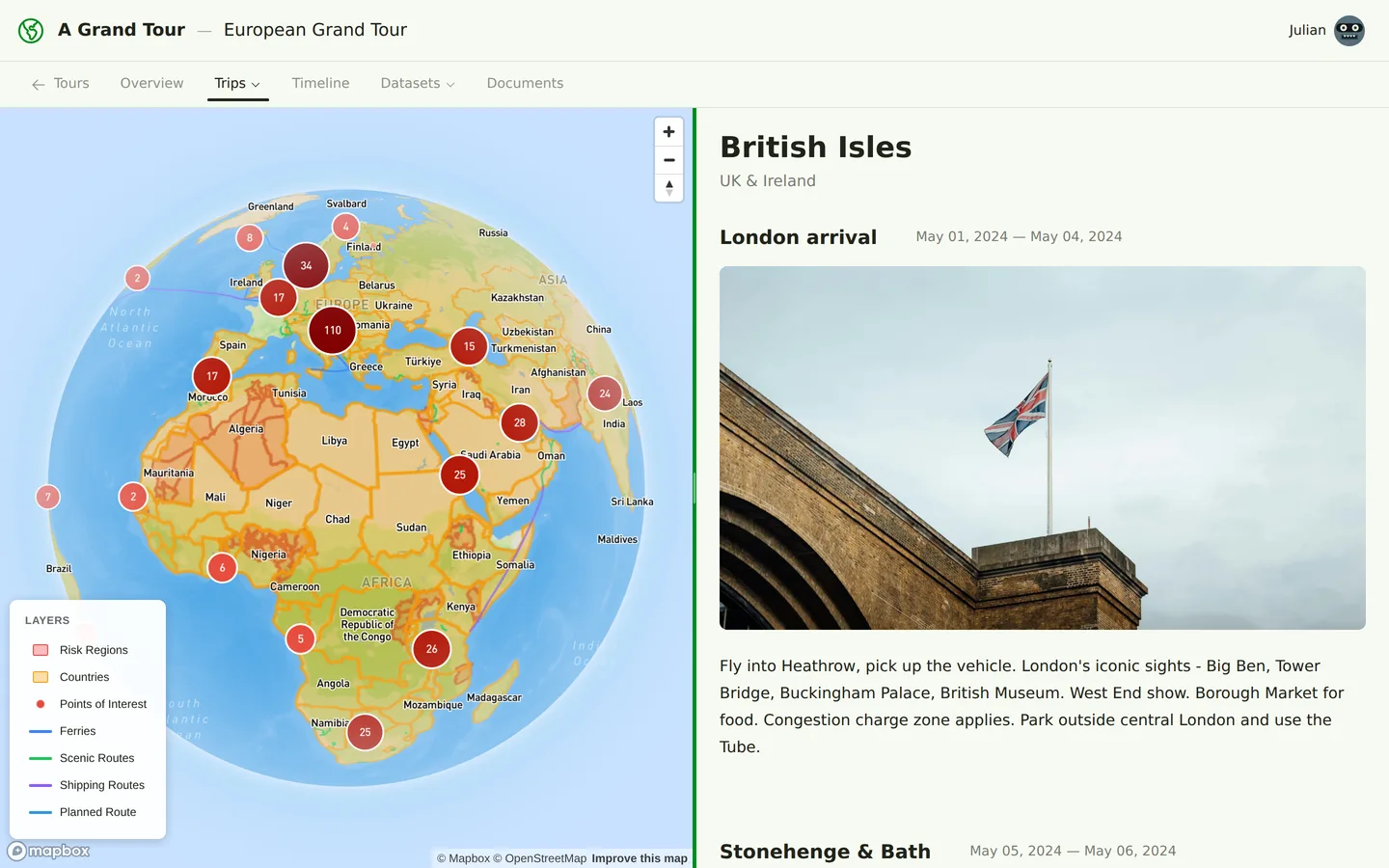
Itineraries in A Grand Tour help you plan the day-to-day details of your trip. Each itinerary item represents a stop, activity, or point of interest along your journey, complete with notes, images, and connections to your route.
What Are Itinerary Items?
Itinerary items are the building blocks of your daily travel plan. Each item can represent:
- A place you'll visit
- Accommodation for the night
- A border crossing
- A notable viewpoint or photo spot
- An activity or experience
- Any other stop along your route
Creating Itinerary Items
To create a new itinerary item:
- Navigate to your trip
- Click "Add Itinerary Item"
- Fill in the details (title, notes, images)
- Link to waypoints for route planning
Each item appears in sequence, giving you a chronological view of your journey.
Itinerary Item Details
Title
Give each stop a clear, descriptive name. This appears on the map and in your itinerary list.
Notes
Use rich Markdown formatting to write detailed notes about each stop:
- What you plan to see or do
- Accommodation details and contact information
- Estimated costs and budgets
- Tips from other travelers
- Personal research and planning notes
The notes field supports full Markdown syntax, including headings, lists, links, and code blocks.
Images
Upload images to each itinerary item to create a visual travel plan:
- Photos of places you want to visit
- Screenshots of accommodation listings
- Maps or diagrams
- Inspiration images
Images are automatically uploaded to cloud storage and processed into multiple variants (thumbnail, medium, large) for optimal performance.
Browsing Your Itinerary
Scroll through your itinerary items to see each stop with its notes, images, and dates. Click any heading to fly the map to that segment of your route.
Linking to Waypoints
Itinerary items can link to waypoints in your route. This connection allows you to:
- Visualize stops on the map
- Calculate distances between stops
- Build a complete route through all your planned locations
When you add waypoints from an itinerary item, they're automatically added to your trip's route in the correct order.
Reordering Items
As your plans evolve, you can reorder itinerary items using drag and drop:
- Click and hold the drag handle on any item
- Drag it to the new position
- Release to drop it in place
The system automatically updates the sequence and recalculates any affected route segments.
Image Uploads
When you upload images to an itinerary item:
- The original file is uploaded directly to cloud storage (Cloudflare R2)
- Background workers generate optimized variants:
- Thumbnail (150x150, cropped square) for list views
- Medium (800px wide) for general viewing
- Large (1600px wide) for detail views
- Original (preserved) for downloads
All variants are stored in R2 and served via presigned URLs, ensuring fast loading times and efficient bandwidth usage.
Organizing Your Itinerary
A well-organized itinerary helps you:
- Estimate timing: See how many stops you have each day
- Plan rest days: Identify where you need breaks
- Track progress: Check off items as you complete them
- Share plans: Give collaborators a clear view of the journey
Related Articles
- Route Planning - Learn how to build routes between your itinerary items
- Datasets - Use POIs and other reference data in your itinerary
- Documents - Write detailed notes with geographic references